
OneLake Security: A Practical Guide


OneLake Security: A Practical Guide
OneLake is Microsoft Fabric’s unified data lake, designed to store all organisational data in a single, logical location. It offers built-in governance and security, and enables seamless data sharing across multiple analytical workloads by storing data in the open and optimised Delta Lake format. Security in OneLake can be set at every level from the entire workspace down to individual folders and files.
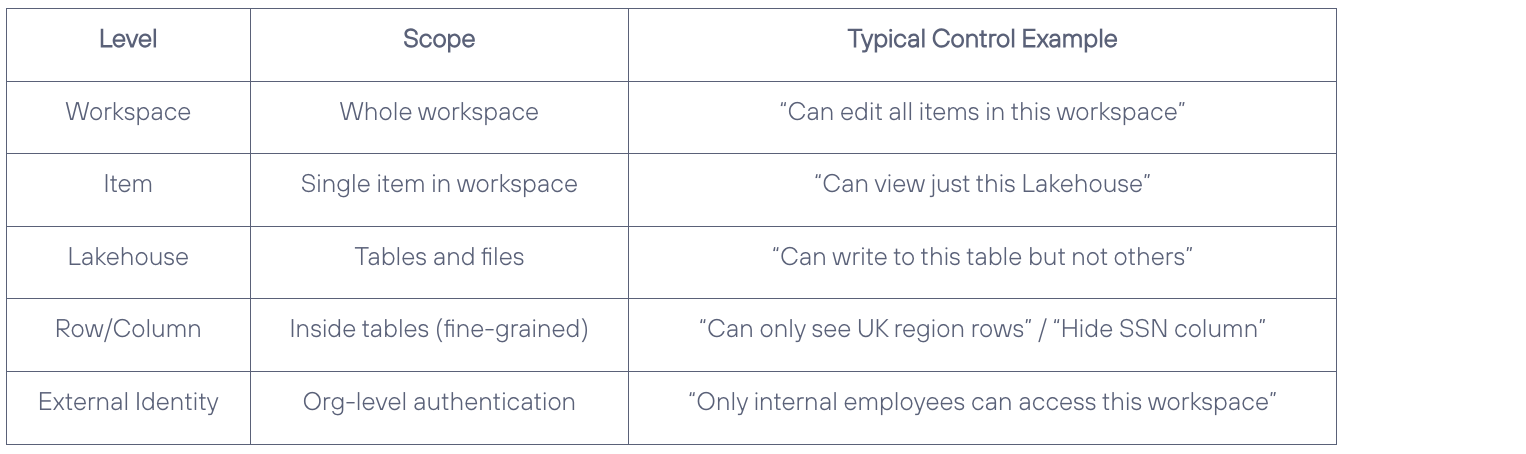
Workspace permissions
Workspaces have their own set of rules for who gets to do what. Workspace permissions are like backstage passes — they decide who can view, edit, or control the content inside a workspace. Every person in a workspace gets a role, and each role comes with a different level of access. There are four main roles, each with its own set of powers — from full-on director to quiet audience member. Here’s how each role works behind the scenes.
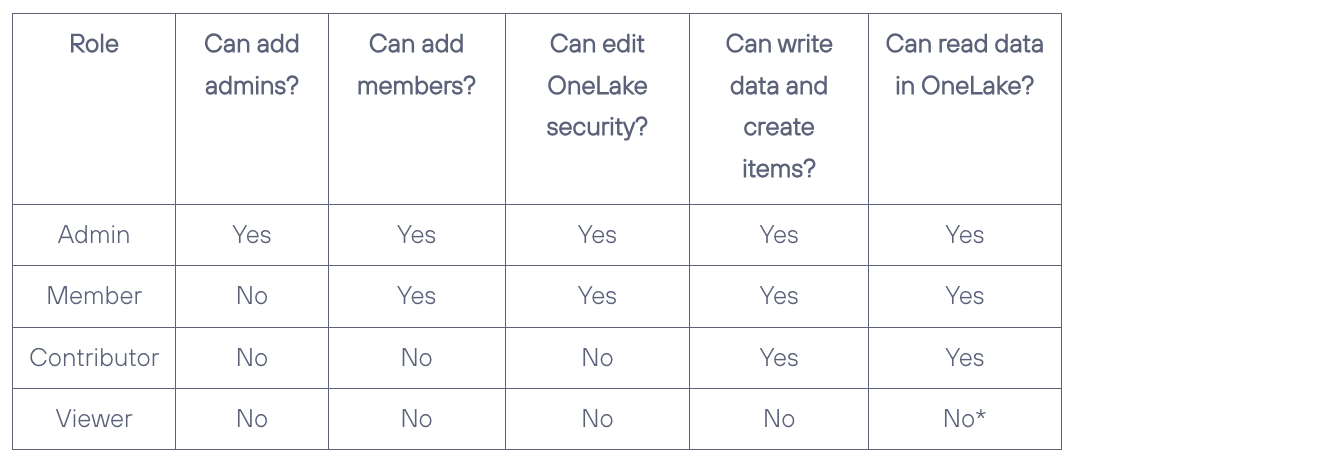
Note *Viewers can be given access to data through OneLake security roles.
Item permissions
Sometimes, a user doesn’t have full backstage access — just a ticket to one specific item in the workspace. They are not in any workspace roles, but they still get to see that one thing. This is where item-level permissions come in. Think of them as the velvet ropes: they determine which parts of the item the user can interact with, and which doors (aka endpoints) are open.
This makes it easy to share specific resources without giving away the keys to the whole workspace. Controlled, focused, and just enough access to get the job done.

*Not applicable to items with OneLake security or data access roles enabled. If the preview is enabled, ReadAll only grants access if the DefaultReader role is in use. If the DefaultReader role is edited or deleted, access is instead granted based on what data access roles the user is part of.
Why use OneLake security?
OneLake security enables users to define fine-grained, role-based access controls for data stored within OneLake. These security rules—such as role-level or column-level restrictions—are consistently enforced across all compute engines within Microsoft Fabric.
Some important things to remember while implementing OneLake Security:
- Admin and Member roles in a Fabric workspace can create OneLake security roles to control user access to data within an item.
- OneLake security roles apply only to users in the Viewer workspace role, granting them specific access to data.
- Users with Admin, Member, or Contributor roles are not restricted by OneLake security roles—they retain full read/write access to all data in the item.
- Every lakehouse includes a DefaultReader role, which grants data access to any user with the ReadAll permission. This role can be modified or deleted to adjust access as needed.
How to get access
OneLake security is currently in a limited preview. If you would like to trial OneLake security, you can fill out the form at https://aka.ms/onelakesecuritypreview.
How it worked
Testing was conducted using a single account, which meant I had to switch permissions from Member to Viewer several times. Each time you switch roles you need to wait at least 10mins before the security features are reflected. During this exercise, I noticed that if you are the owner of the Fabric item, the security rules may not be correctly enforced. Once the ownership of the item was assigned to a different user, the security features started to work as expected.
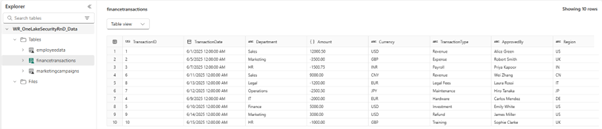
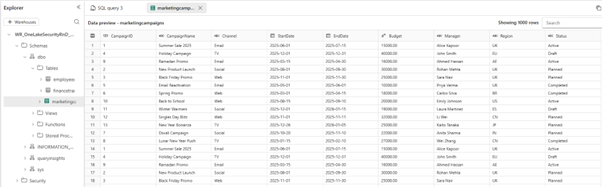
For this exercise I created 3 tables: employeedata , financetransactions and marketingcampaigns. I applied row level security on marketingcampaigns and column level security on marketingcampaigns and employeedata. No security rules were applied on financetransactions.
As a member, without any security applied to my account this is what was visible for all 3 tables:

The Power BI dashboard:
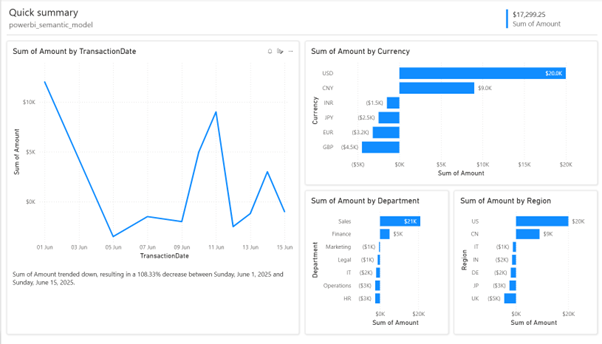
Note: This report was autogenerated based on the sample data
With the OneSecurity rules applied, as a viewer:
- I shouldn’t be able to see finance transactions.
- I should be able to see all columns of employee data except Salary.
- I should be able to see data only for UK Region in marketing campaigns and only CampaignId, CampaignName and Region columns.
In Lakehouse
I see just 2 items as expected but unfortunately as a viewer, I do not have access to see the parquet files in the Lakehouse
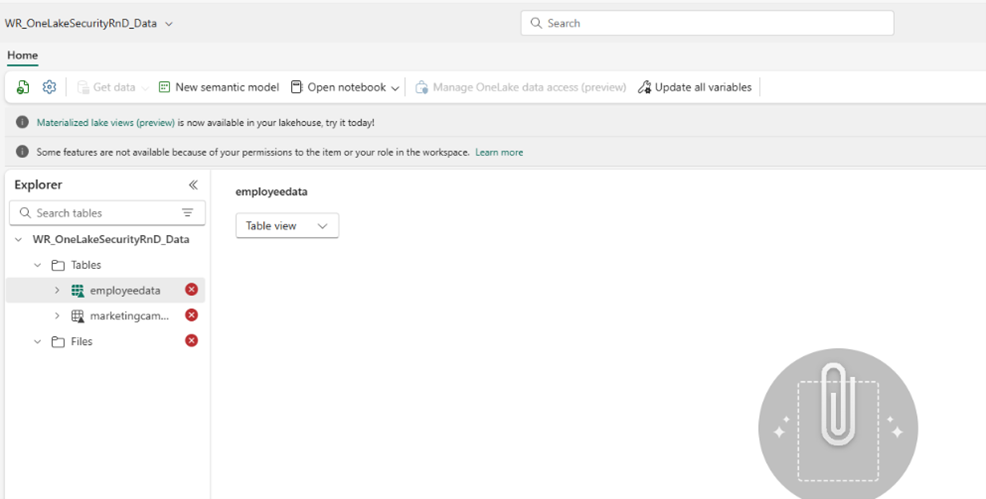
Error Details
Server Error.
Message
User is not authorized to access the files in storage path ’22d8c28c-88cd-45ba-a157-b68ac2855465/Tables/marketingcampaigns/_delta_log/_last_checkpoint’ for the table.
Error Code
UnauthorizedToAccessTableFiles
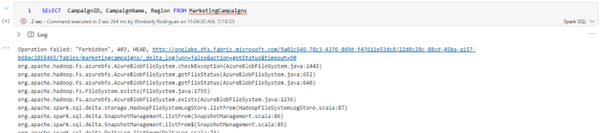
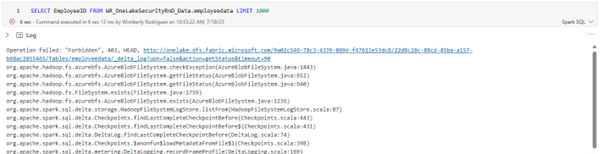
Using a Notebook
Using OneLake File Explorer
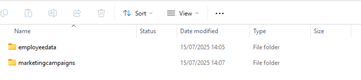
I do not have access to see the parquet files.
If I change the role from Viewer to Member. I get access to all data without any security rules applied to it.
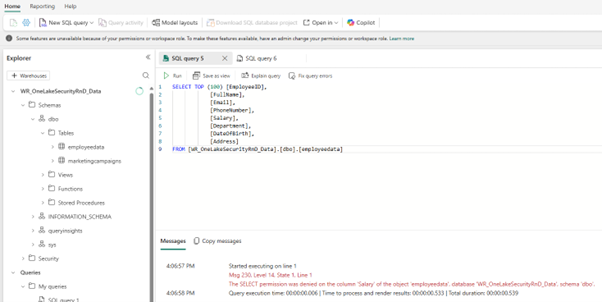
Using the SQL endpoint
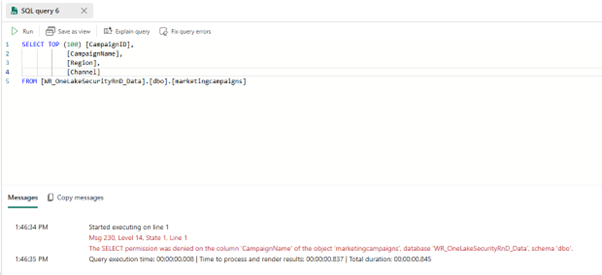
I see the following error for employeedata. Note that it mentions I do not have access to salary column, which is as expected.
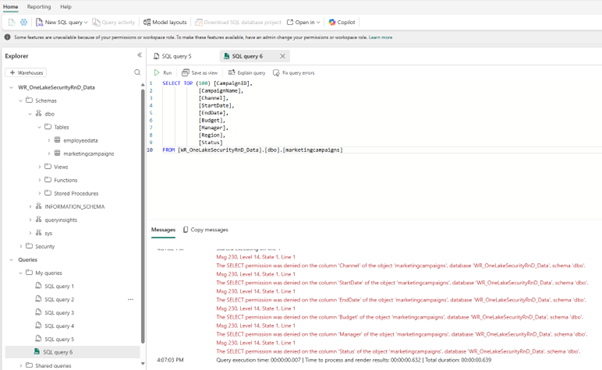
Same for other columns in marketingcampaigns
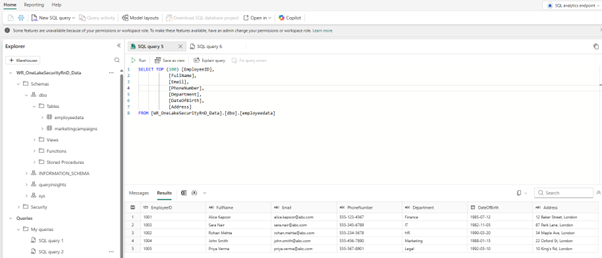
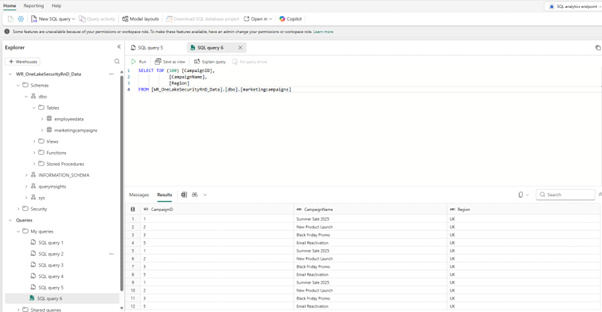
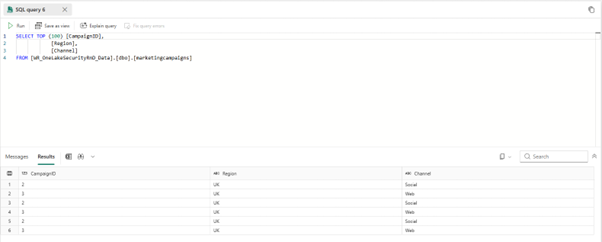
When I query the columns that I have access to, it shows me only the data I should have access to.
Using PowerBI
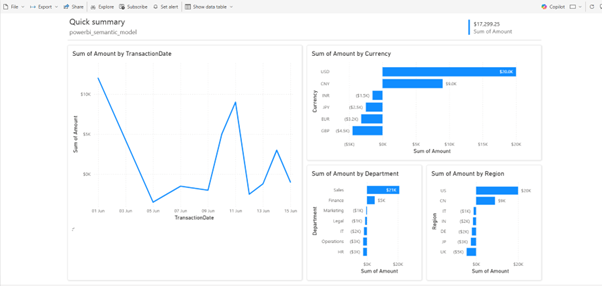
As you can see, my view isn’t restricted to UK region as per the security rule applied to my account. And I can see the financetransaction data which, I shouldn’t have access to.
What happens when the rows or columns are deleted/dropped
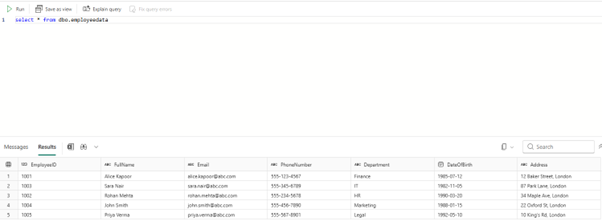
For my testing I have deleted the Salary column from employeedata. Note, previously when I didn’t have access to the column, doing a select * failed. But now it shows me all data available in the file.
Next, I have deleted all rows where Channel is Email from marketingcampaigns also I have dropped the CampaignName column.
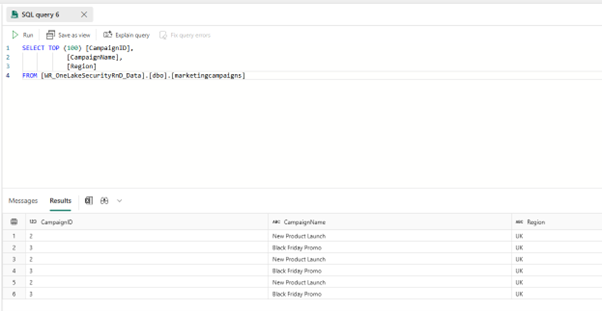
As you can see in the above screenshot, the rows have got deleted but the column still shows even though it has been deleted from the Lakehouse. Let me now remove the column from the security role and add Channel so you can see it clearly.
Issues encountered while working with the preview version
This feature is very helpful especially given you can define your security in OneLake and query it through Spark, SQL Analytics Endpoint, and Power BI semantic models with consistent results. Unfortunately, it didn’t work as expected. As seen above, the feature worked well only in the SQL Analytics Endpoint. In Spark I had no access and in PowerBI I had all access.
As mentioned in the documentation, as a contributor I shouldn’t be able to edit or add OneLake security rules, however, I was still able to make the changes.
Even though I was a member, the row level security was still applied on marketingcampaigns item but not the column level security. This is because, row level security policies apply to all users, including dbo users (administrators) in the Lakehouse. If members of roles like Admin, Member, or Contributor need to see all rows to troubleshoot or validate data, the security policy must be explicitly written to allow that. Admins are not automatically exempt from the restrictions imposed by row-level security.
To check if the security settings have been applied to the user
The admin and member can check running the following queries to see if the security settings are applied for the viewer:
SELECT * FROM sys.database_principals;
Check if the roles created show. It will have the prefix ols_
SELECT members.name, roles.name FROM sys.database_role_members AS roleMembers
JOIN sys.database_principals AS roles ON roles.principal_id = roleMembers.role_principal_id
JOIN sys.database_principals AS members ON members.principal_id = roleMembers.member_principal_id
WHERE roles.name = ‘ols_’
Final Note
I have covered limited test case scenarios and so the above information is based on my experience with the OneLake security feature. Given it is still in preview, you may experience different results. Once it is available in GA, the expectation is that some of my test outcomes will no longer be accurate.
Feel free to get in touch and let me know what you think about OneLake security and how you would like to use it in your organisation.